Child Name Servers are Name Servers which are registered with the Registry under your domain name. You have to register Name servers with the Registry, before you can use them as Name Servers for registering other domain names. Child Name Servers can be registered only by the owner of the domain name under which they are registered.
Example:
A Child Name Server ns2.xyz.com can only be registered by the Owner of xyz.com.
Registering and Managing Child Name Servers
Step 1:Log in to your control panel. Learn how.
Step 2:Navigate to the Order View.
Search the domain name for which you want to add, modify or delete the Child Name Servers and select the domain to view the order information.
Step 3: Add, Modify or Delete Child Name Servers.
i. Add a Child Name Server
Adding Child Name Servers for the first time:
-
Under the CHILD NAME SERVERS section, click Add.
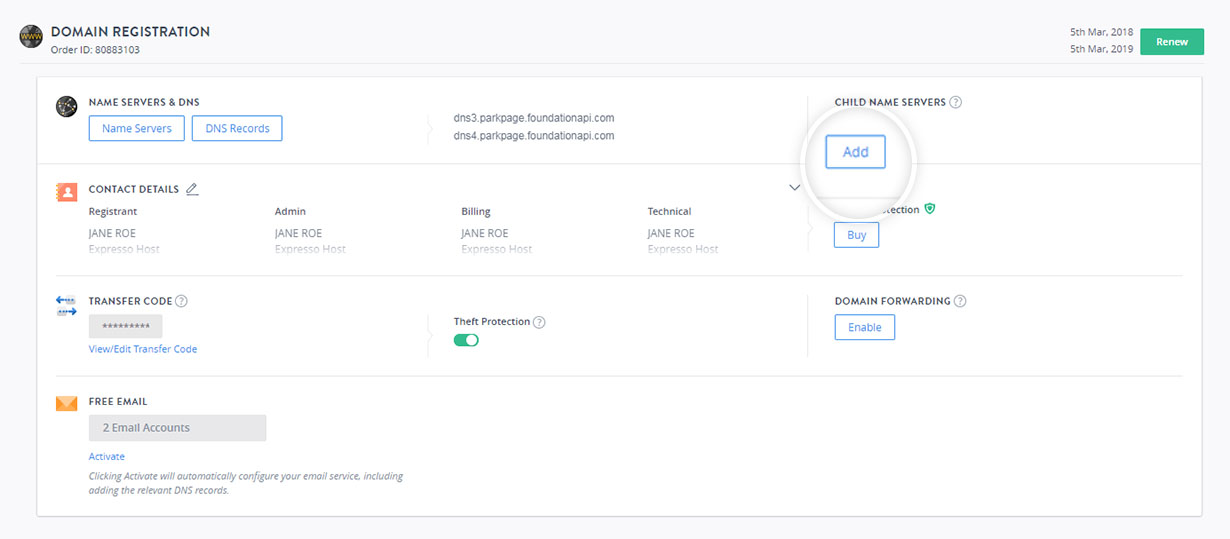
- Enter the Host Name of the Child Name Server you want to add in the Host Name field, mention the IP Address (IPv4 or IPv6).
- Click Add More if you want to add more than one Child Name Server.
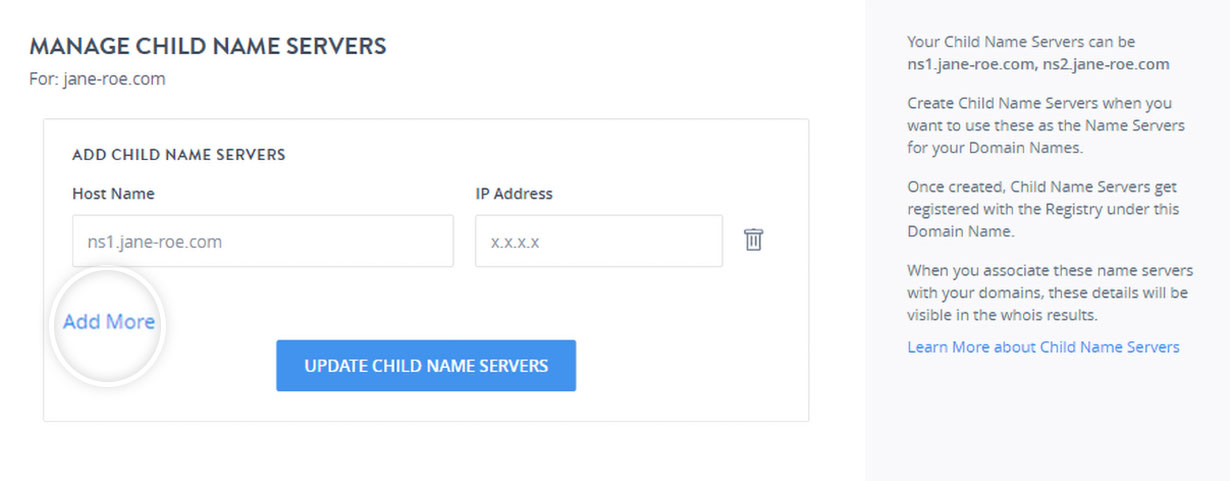
- Click UPDATE CHILD NAME SERVERS.
Adding Additional Child Name Servers:
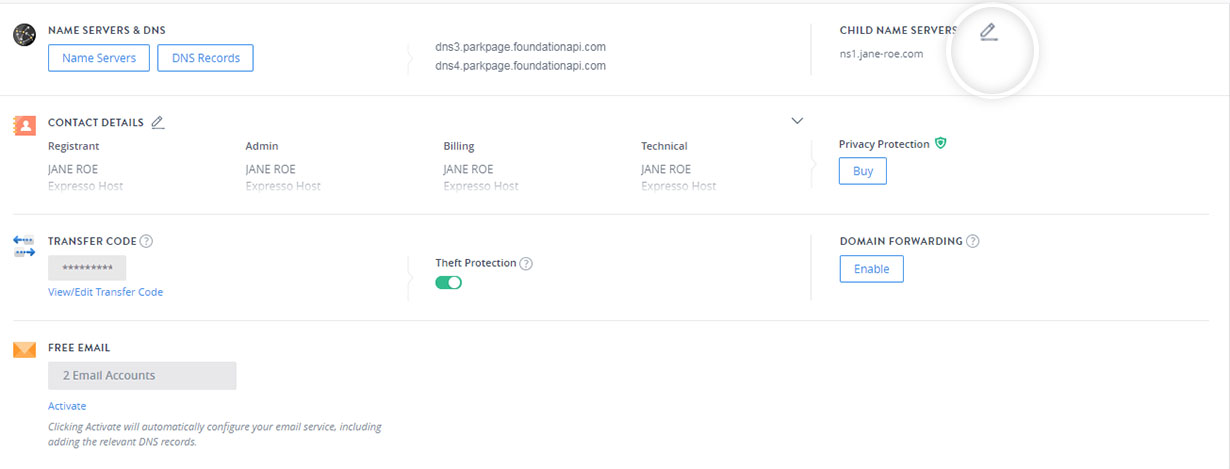
- Under the CHILD NAME SERVERS section, click the edit icon if you want to add additional Child Name Servers.
- Click Add More to add a new Child Name Server.
- Enter the Host Name of the Child Name Server you want to add in the Host Name field, mention the IP Address (IPv4 or IPv6).
- Click UPDATE CHILD NAME SERVERS.
Examples:
-
For yourdomainname.com, you may use the Host Name as ns1.yourdomainname.com and an IPv4 IP Address as 111.222.333.444.
-
yourdomainname.biz could have the Host Name as dns1.yourdomainname.biz and an IPv6 IP Address as 2001:0db8:0:0:0:0:1428:57ab.
Registering a Child Name Server as mentioned above is just the first step. The Child Name Server is required to be registered at the Registry to only serve as a non-authoritative Record should your Child Name Server not be resolvable in some extreme condition.
This Name Server would start working only after you have added either an Address (A) Record for IPv4 or AAAA Record for IPv6 or Canonical (CNAME) Record for this Name Server within the Zone for the domain name (of this Child Name Server) in your own DNS Server, thus binding the NS to the IP Address.
Examples:
-
If you are running your own DNS Servers, then you would need to add a Zone for the domain name yourdomainname.com and create an A Record like:
ns1.yourdomainname.com. 38400 IN A 111.222.333.444
Similarly, you may add an AAAA Record as
ns1.yourdomainname.com. 38400 IN AAAA 2001:0db8:0:0:0:0:1428:57ab
-
If you wish to simply point your Name Servers to other Name Servers, then you may do so by either:
-
you may either add a CNAME Record to your Service Provider's Name Server, after enabling Managed DNS service through them:
ns1.yourdomainname.com. 38400 IN CNAME ns1.serviceprovider.com
or
-
you may add an A or AAAA Record to your Service Provider's Name Server IP Address (depending upon whether your Service Provider has an IPv4 or IPv6), after enabling Managed DNS service through them:
ns1.yourdomainname.com. 38400 IN A 777.888.999.000
or
ns1.yourdomainname.com. 38400 IN AAAA 2001:0db8:0:0:0:0:1428:57ab
-
ii. Modify a Child Name Server
To modify a Child Name Server:
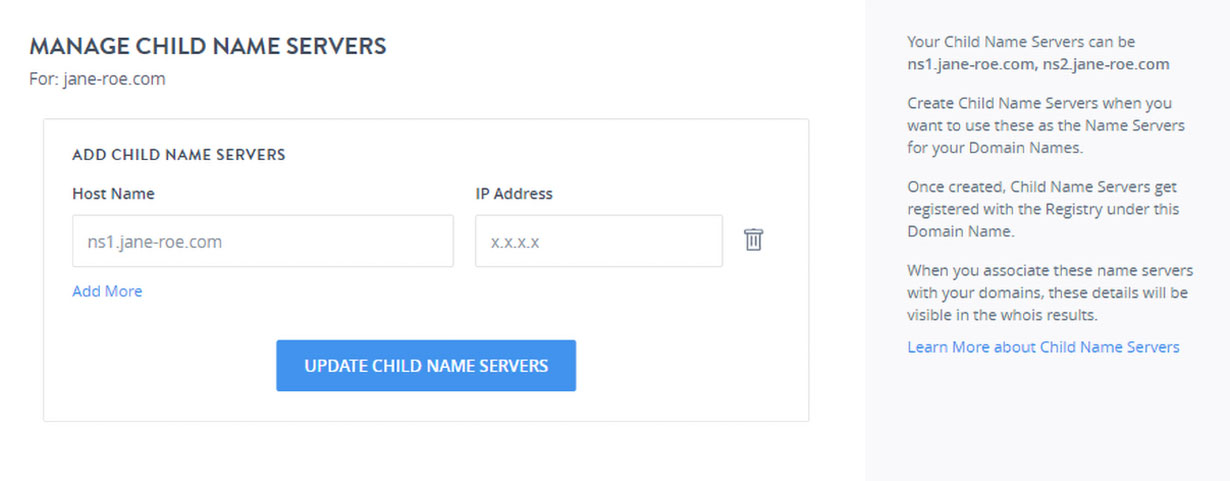
- Under the CHILD NAME SERVERS section, click the edit icon.
- A window will pop-up, you can then modify the Host Name and the IP Address.
- Click UPDATE CHILD NAME SERVERS.
Domain Name Extension Specific Conditions
Errors, IPv6 Format and IPv6 Support
You will encounter the below error message in case an invalid or reserved IP Address is used:
Object does not exist
-
An IPv6 Address may be entered in either of the following formats:
-
2001:0db8:0000:0000:0000:0000:20.40.87.171
-
2001:0db8:0000:0000:0000:0000:1428:57ab
-
2001:0db8:0000:0000:0000::1428:57ab
-
2001:0db8:0:0:0:0:1428:57ab
-
2001:0db8:0:0::1428:57ab
-
2001:0db8::1428:57ab
-
2001:db8::1428:57ab
-
-
IPv6 Addresses are not supported for some TLDs
iii. Delete a Child Name Server
- Under the CHILD NAME SERVERS section, click the edit icon.
- A window will pop-up, click the delete icon next to the Child Name Server you want to delete.
- Click UPDATE CHILD NAME SERVERS.
-
You will encounter the below error message while deleting a Child Name Server if this is being used by another domain name of the same extension as a Name Server:
Getting an Error?Object association prohibits operation.
Example:
If the Child Name Server ns1.yourdomainname.com is being used by xyz.com as its Name Server, then you will not be able to delete ns1.yourdomainname.com until xyz.com modifies its Name Server (to some other Name Server).
You will need to modify the Name Servers of all domain names using the Child Name Server as their authoritative Name Server and try attempt the Child Name Server deletion.
However, if xyz.info was using ns1.yourdomainname.com as its Name Server, then you would not face any issue while deleting your Child Name Server: ns1.yourdomainname.com.
Error due to Lock / Suspension / Outbound Transfer
You will encounter the below error message in case the domain name is either:
-
Locked/Suspended at the Registry (and not under our system), or
-
a Transfer Away for the domain name to another Registrar is under process.
Domain Status does not allow this operation.
If you wish to modify/delete your domain name's Child Name Server in these circumstances, you have the following solutions:
-
Lock/Suspension applied at the Registry: Contact our Support Team at to know the reason for Lock/Suspension and how this Lock/Suspension may be removed.
-
While a Transfer Away is under process:
-
Cancel the Transfer through the link listed in the email sent to the Registrant/Administrative Contact of the domain name and then perform the required modification, or
-
Wait for the Transfer to complete and then carry out the desired modification at the New Registrar.
-