Domain Theft Protection feature helps ensure that your Domain Name remains safe from illegal Domain Name transfers. Enabling Theft Protection on your Domain Name will result in a Transfer (Away) Request for this Domain Name to another Registrar to fail at the Registry itself.
-
This feature is not available for the following TLDs (Domain Name extensions) on account of restrictions imposed by the Registry:
-
Due to restrictions imposed by the Registry:
-
Due to other restrictions:
-
-
If you wish to have your Domain Name transferred away from for some reason, you need to first disable the Theft Protection and then place a Transfer request at the Registrar of your choice.
-
Depending upon whether the Theft Protection service is available for a Domain Name or not, the Order View of the Domain Name will display the Theft Protection status, under the Order Information section as:
-
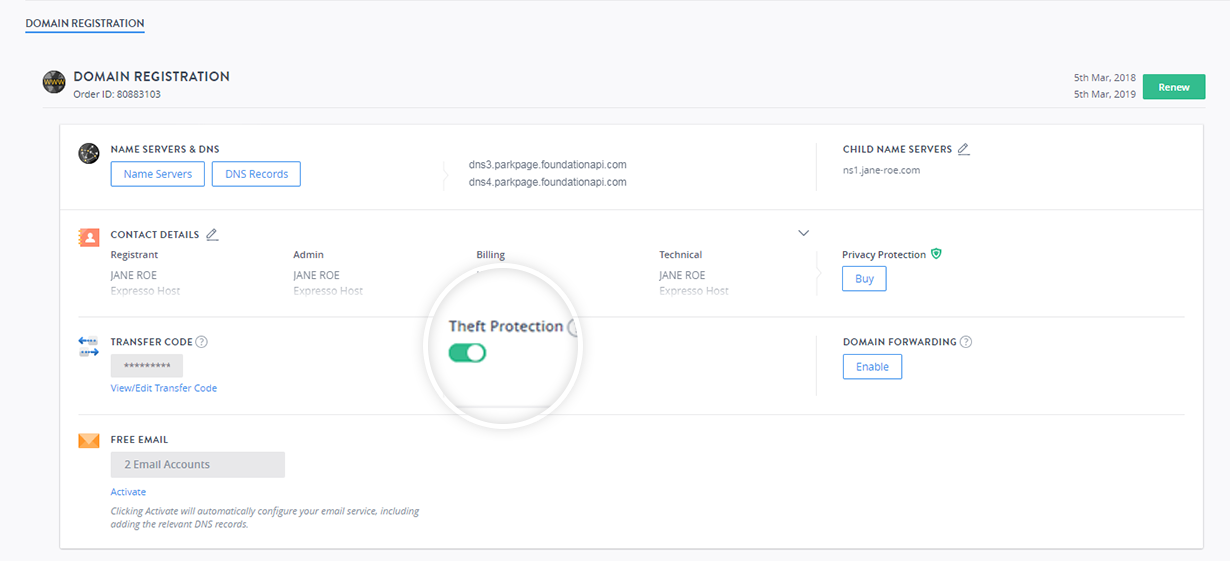
Enabled (Green switch): Indicates that the Theft Protection service has been turned on for your Domain Name and any request to Transfer the Domain Name to another Registrar will fail.
-
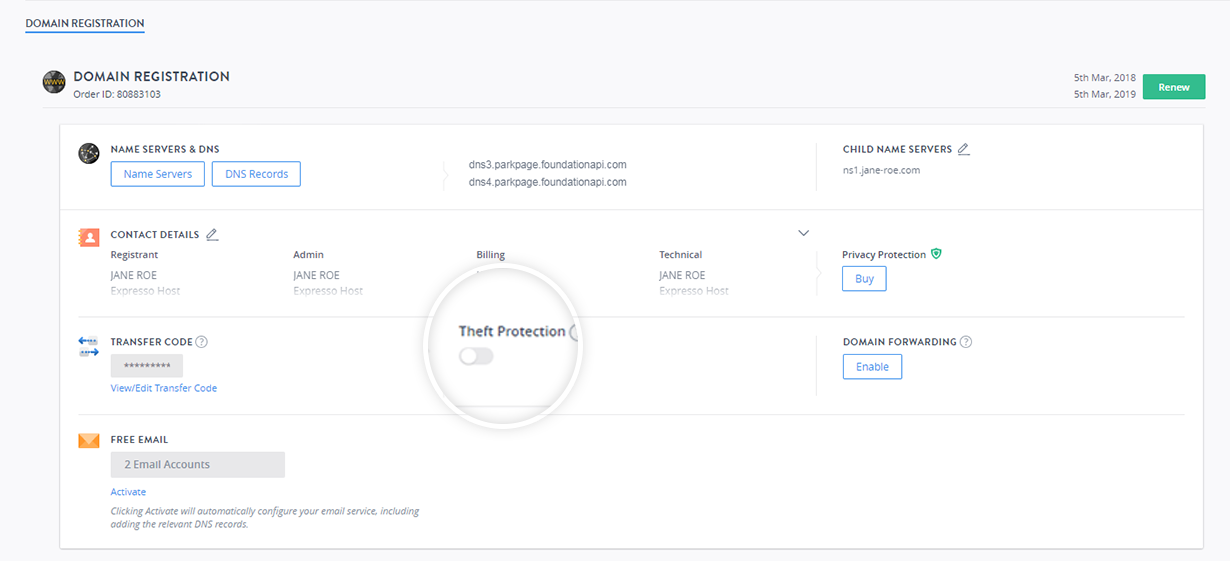
Disabled (Gray switch): Indicates that the Theft Protection service has been turned off for your Domain Name and your Domain Name can be transferred away to another Registrar.
-
To Enable Theft Protection for a Domain Name:
-
Log in to your Control Panel. Learn How.
-
Search the domain name for which you want to enable theft protection and select the domain to view the order information.
-
Under the Theft Protection section, click the toggle button.
-
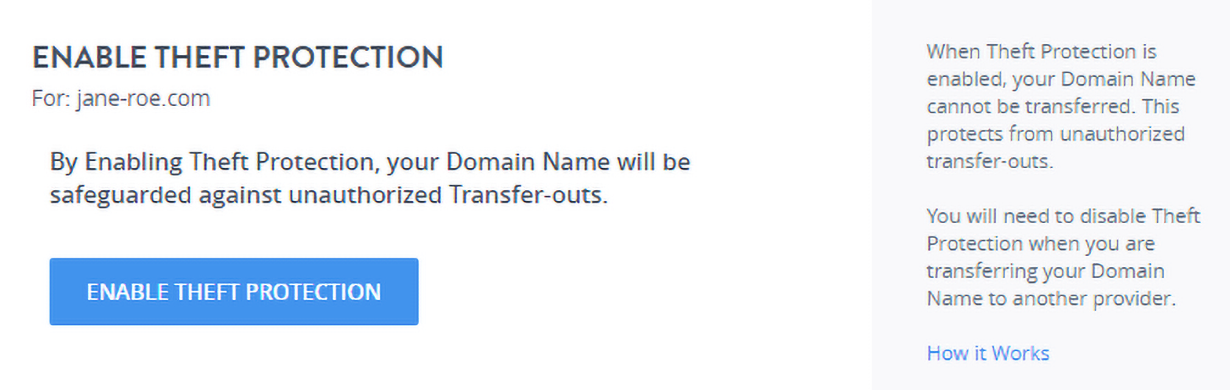
You will see a pop-up window asking to confirm the action.
-
Click Enable Theft Protection to complete the action.
-
The toggle button will turn from grey to green to indicate the enabled state of Theft Protection.
To Disable Theft Protection for a Domain Name:
-
Log in to your Control Panel. Learn How.
-
Search the domain name for which you want to disable theft protection and select the domain to view the order information.
-
Under the Theft Protection section, click the toggle button.
-
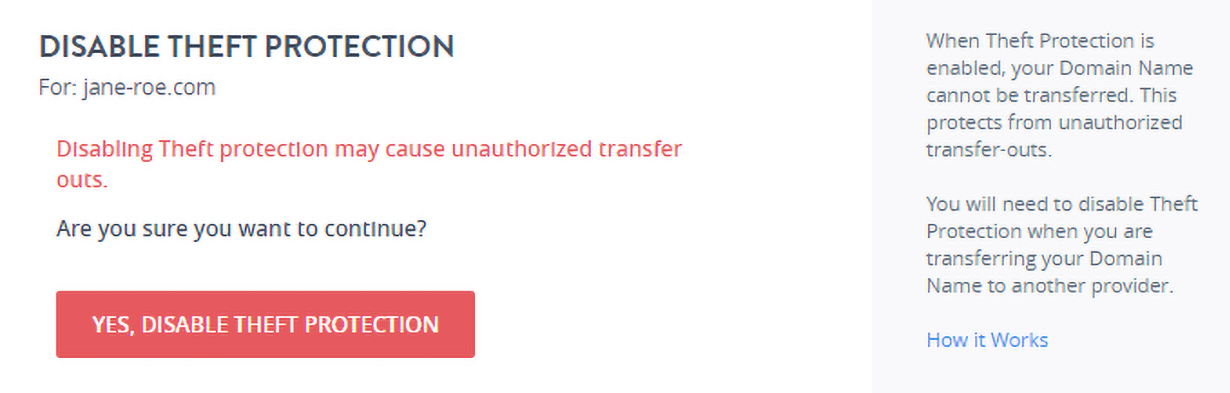
You will see a pop-up window asking to confirm the action.
-
Click Disable Theft Protection to complete the action.
-
The toggle button will turn from green to grey to indicate the disabled state of Theft Protection.
You will encounter the below error message in case the Domain Name is Locked/Suspended at the Registry (and not under our system):
Domain Status does not allow this operation.
In this case you are requested to contact our Support Team at to know, the reason for the Lock/Suspension and how the
Lock/Suspension may be removed.